Staff Views
Staff views are how workspace admins can view information about their employees all at once. Hyra's design is made to help you efficiently manage your group. In this feature, you can create customized views depending on what details are most important.
How to get Started
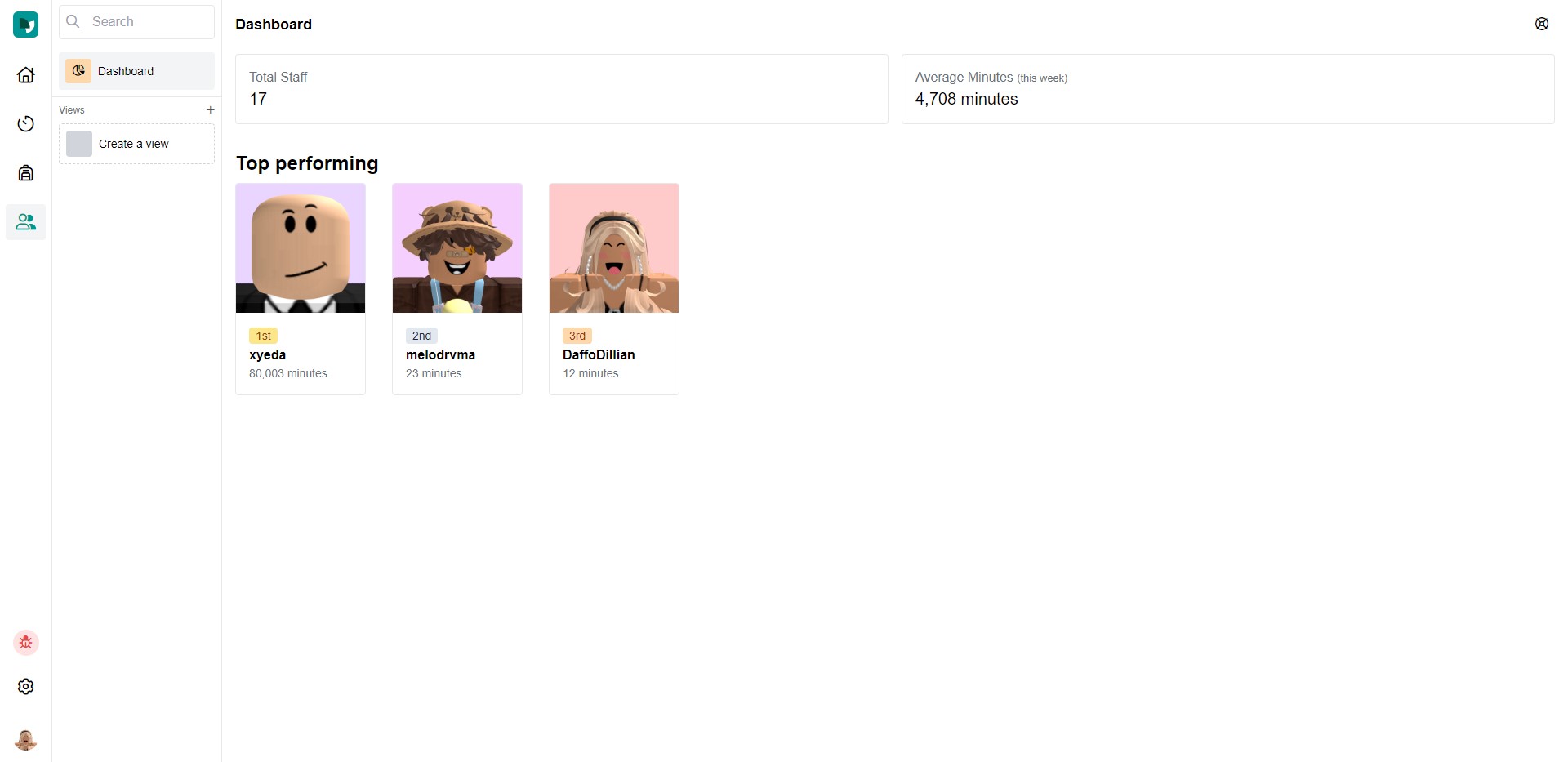
To start off, click the staff icon on the left side of your screen. You will see the dashboard which lists the amount of staff, the average activity for that week, and the top performing employees. Underneath the dashboard button, click "Create a view".
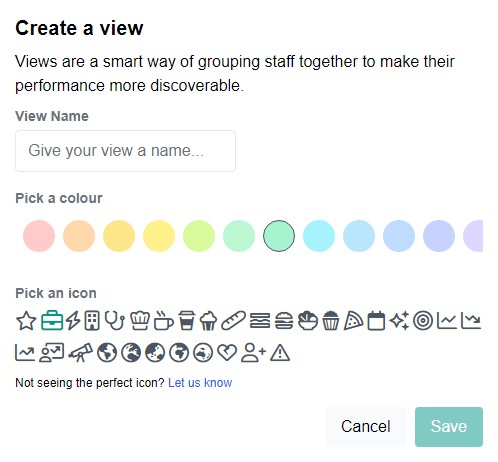
Once you have done so, you will see a pop-up where you can create a name, a colour, and an icon. Examples of views could be a certain rank in your group, a certain continent, and more! These views are completely customizable and to work with any type of Roblox group!
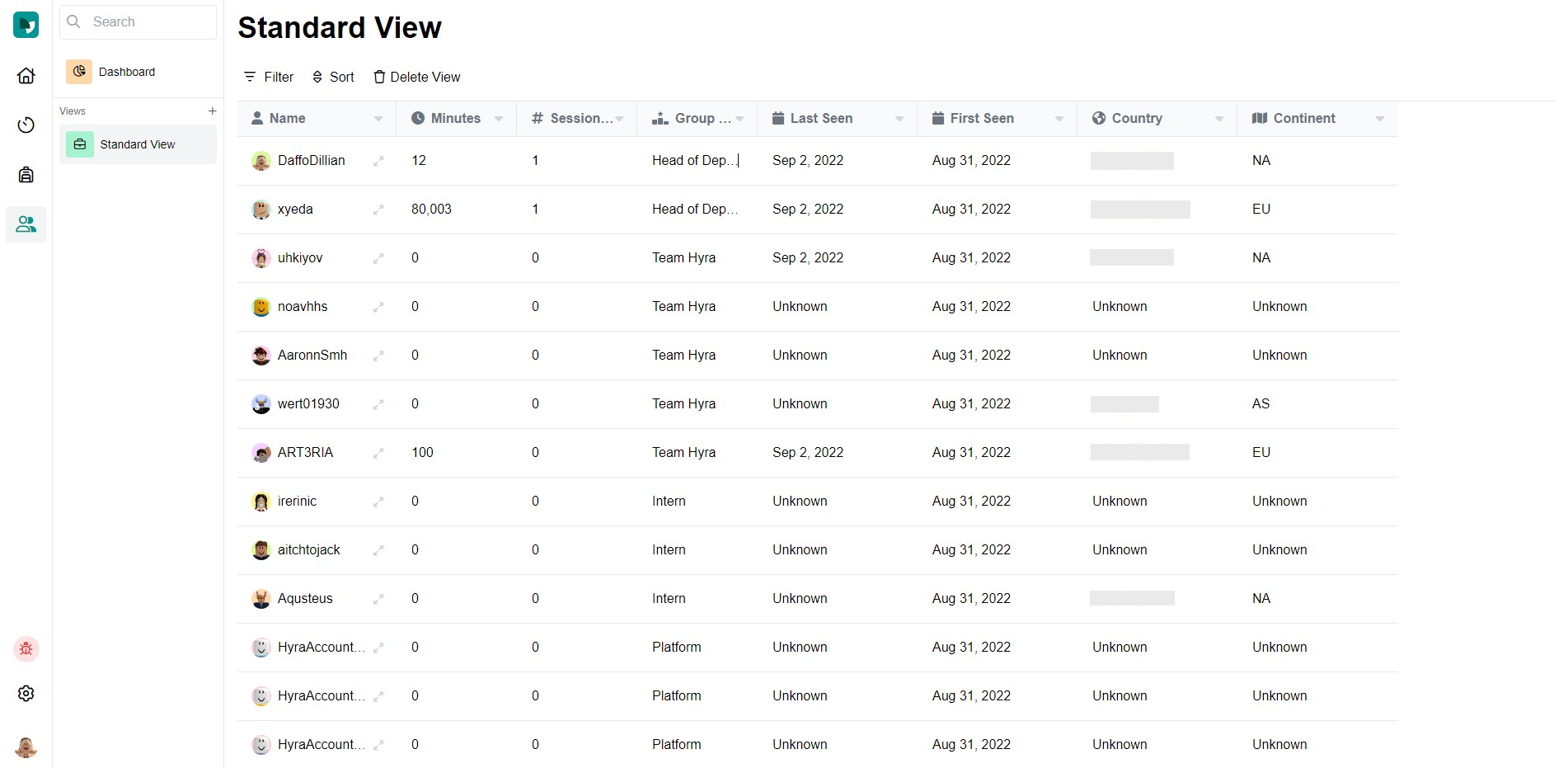
Once you have created your first view, you will see every user that is a part of your workspace. You will see their username, their activity in minutes, the amount of sessions they have attended, their group rank, the last time they logged onto Hyra, the first time they logged onto Hyra, their country, and their continent.
How can I customize the Views?
Filter and sort are the two ways to customize your view.
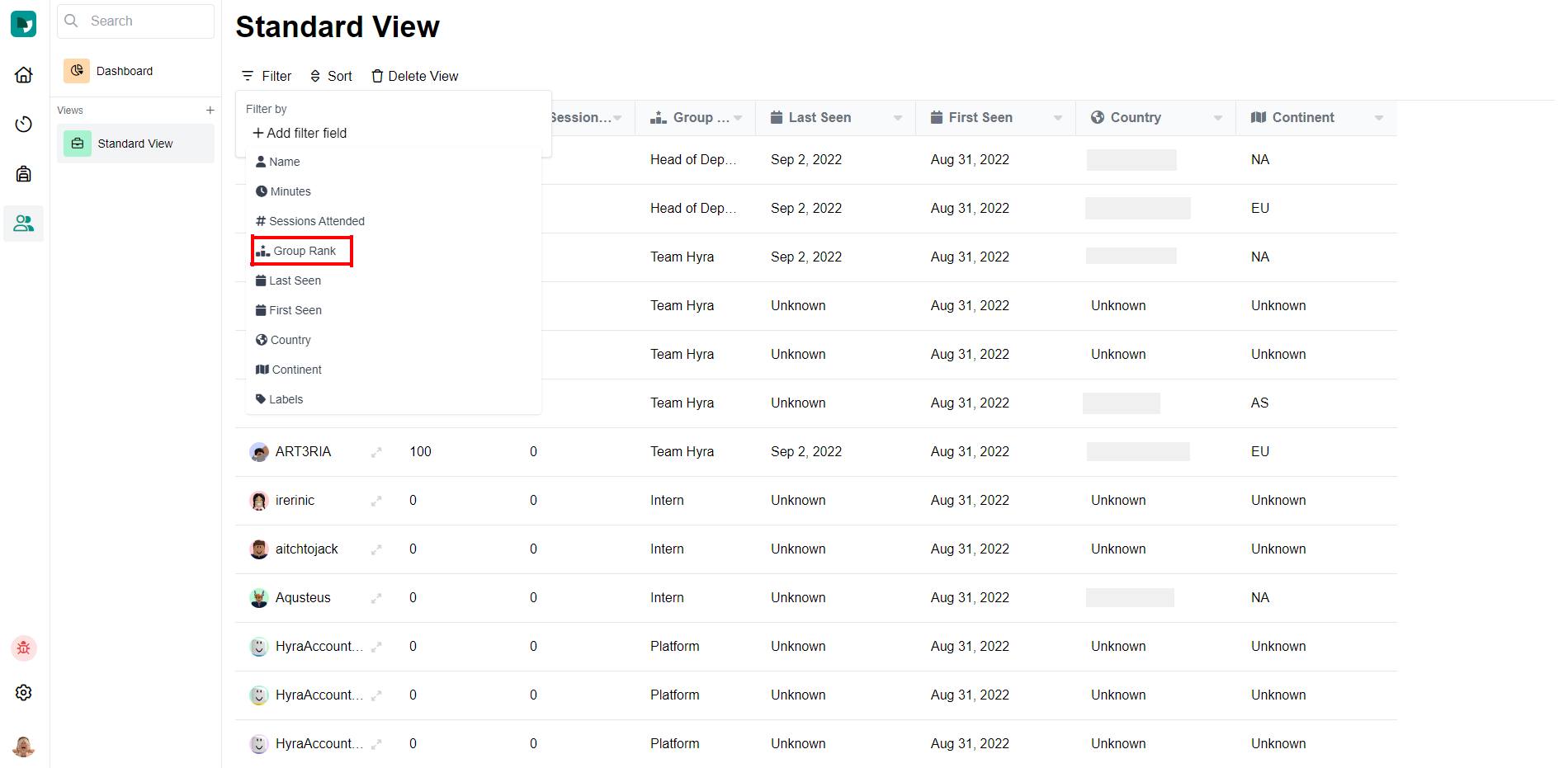
Filter: Filter out unnecessary users. For example, if you want this view to only contain a certain role, use the "Group Rank" filter. The dropdown allows you to do multiple customizations.
| Filter Type | Description |
|---|---|
| "is..." | will contain one role |
| "is not..." | will contain everyone but one role |
| "is greater than..." | will contain all roles above a certain role. Although the value you choose will not be included. |
To find the value of a group rank, go to "Configure Group" on your Roblox group and click "Roles". Each role will have a rank number, this will be the value.
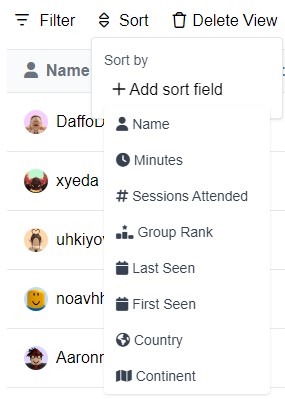
Sort will arrange all users in a certain way, but will not exclude anyone. For example, you can sort it so the users show up alphabetically (A to Z, or Z to A). You can do this by clicking "Name".
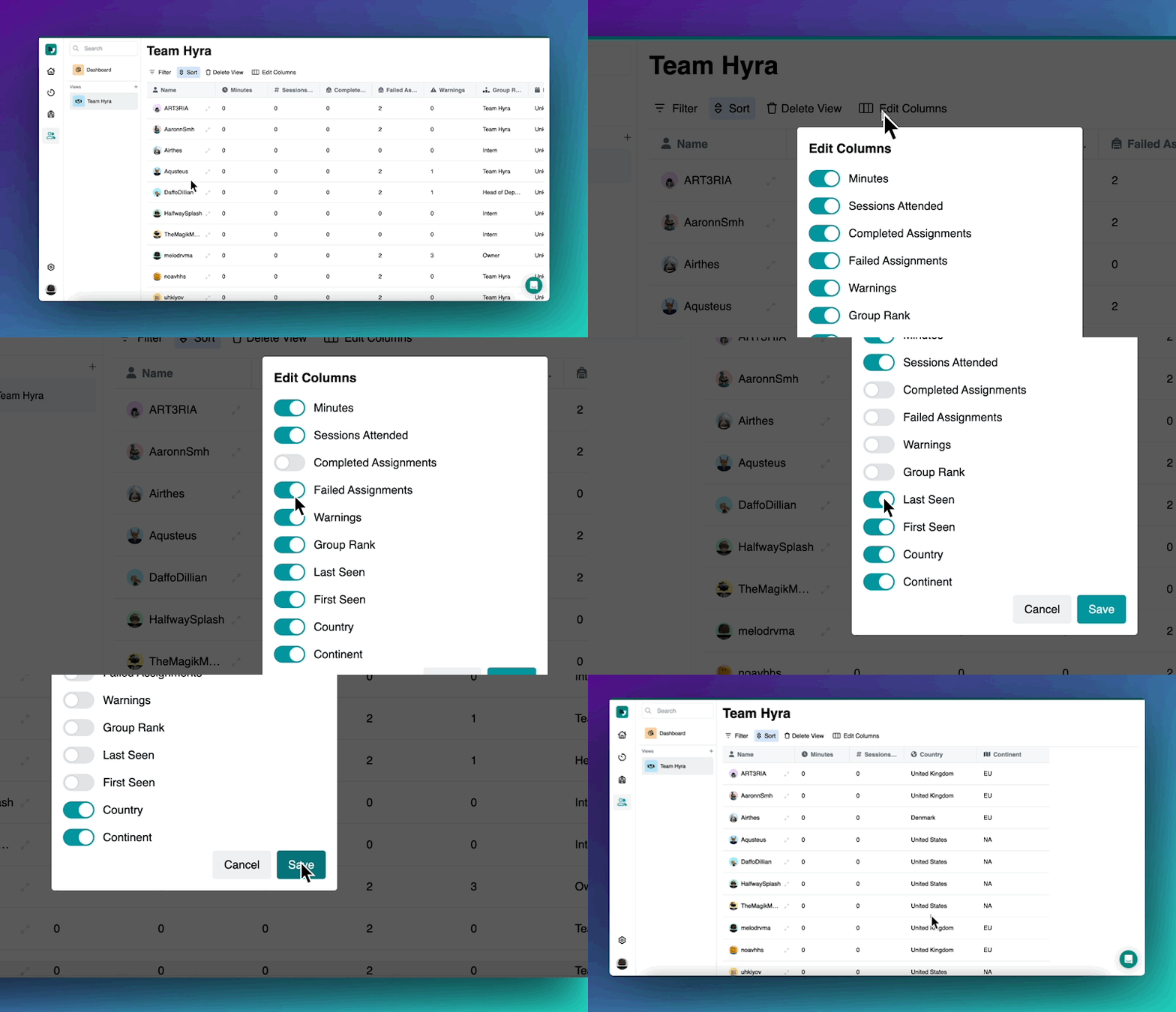
Edit Columns will filter the most important columns that your view need. Let's say you don't need the "First Seen" column. To do this, click the Edit Columns button and turn off First Seen. After that, click save.
Filtering by Continent
If you wish to filter your staff by continent, it is helpful to know the content codes.
| Continent | Code |
|---|---|
| North America | NA |
| Europe | EU |
| South America | SA |
| Asia | AS |
| Africa | AF |
| Oceania | OC |
Time off Icons
To also help you identify which staff are currently out without checking the Time off Page or their Directory Profile, you can see it right beside their username here!
Here's a table to help you identify the different Time off Icons.
| Icon | Description |
|---|---|
 | Green Icon shows that the user is currently out. |
 | Yellow Icon shows that the user is currently in time off this week. |
 | Grey Icon shows that the user is in time off last week. This is helpful if let's say you have a one-week cooldown for LOA or Time off Requests. |